
IPTV EPG Not Working in 2026? 9 Easy Fixes to Get Your TV Guide Back
You sit down to watch TV, open your IPTV app, and discover that the channel guide is completely blank. Or every channel says “No Information.” Sometimes the guide loads, but the schedule is several hours wrong.
Frustrating? Absolutely. But a missing IPTV program guide doesn’t always mean your streaming service is broken. Let’s work through the possible causes, starting with the simplest fixes.
⚡ Quick Answer
If your IPTV EPG is not working, first refresh the guide data inside your player. Then check the EPG source, update your playlist, verify the channel-to-guide mapping, and inspect the device’s time settings.
The important detail: TV channels and TV-guide information are separate data. A channel can play perfectly while its schedule is missing.
What Is an IPTV EPG?
EPG stands for Electronic Program Guide. It’s the grid that tells you what’s currently showing on each live TV channel and what’s scheduled to come next.
Think about the guide on a traditional cable television box. You see the channel name, the program title, its starting time, and the next shows in the lineup. An IPTV player can provide a similar experience when valid guide data is available.
Some IPTV setups use a format called XMLTV to provide program listings. Others retrieve guide information through the source or service configured in the player.
But the IPTV app still needs to download, interpret, and match that information to the correct channels. Problems at any of those stages can produce an empty or inaccurate guide.
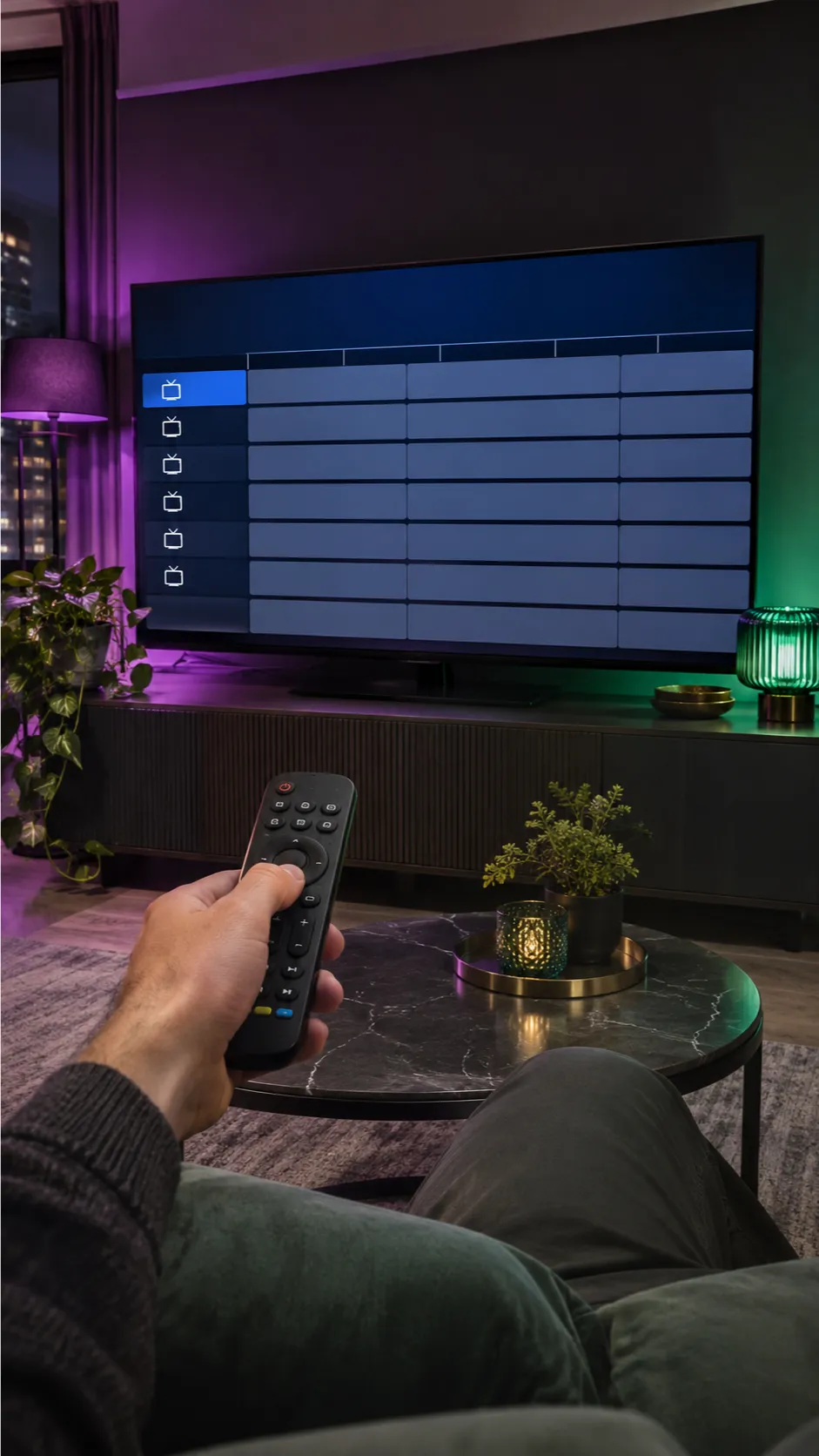
What Does Your IPTV Guide Problem Look Like?
Before changing settings, take a moment to identify the actual problem. That can save you a lot of unnecessary work.
| What You See | Possible Cause | Where to Start |
|---|---|---|
| Every channel says “No Information” | EPG wasn’t loaded or source is unavailable | Fixes 1–3 |
| Only a few channels have missing listings | Channel IDs or guide mapping may not match | Fix 4 |
| Shows appear at the wrong time | Timezone or EPG offset problem | Fix 5 |
| Yesterday’s programs are still showing | Stale guide data or cache | Fixes 6–7 |
| The guide works on one device only | Device or app configuration difference | Fixes 7–9 |
9 Ways to Fix IPTV EPG Not Working
Work through these in order. You probably won’t need all nine. And if you’re unsure about a setting, make a note of its original value before changing anything.
Refresh Your IPTV EPG Manually
Start with the easiest step: ask the IPTV player to download fresh program-guide information.
Many players provide a command such as Update EPG, Refresh TV Guide, or Reload Guide.
Open your app’s settings, find its EPG or TV Guide section, and look for the refresh option. Wait for the refresh to finish, then reopen the guide.
Check Your EPG Source or URL
A TV guide cannot load information from a source that is missing, expired, unreachable, or incorrect.
If your player uses a separate XMLTV guide URL, open its guide-source settings and verify that the address is correct. Check for typing mistakes and make sure you’re using the current source supplied by your authorized provider.
You don’t need to post your playlist credentials publicly to troubleshoot. If the link appears invalid, contact the provider through a trusted channel.
Reload Your IPTV Playlist
Your channel list and EPG information need to agree about which channels exist.
If a playlist changes — perhaps because channels were renamed or reorganized — the guide may not match its current entries.
Use the app’s Refresh Playlist or equivalent option. Once the playlist update is complete, refresh the EPG again.
Try this especially if guide problems began after a change to the channel list.
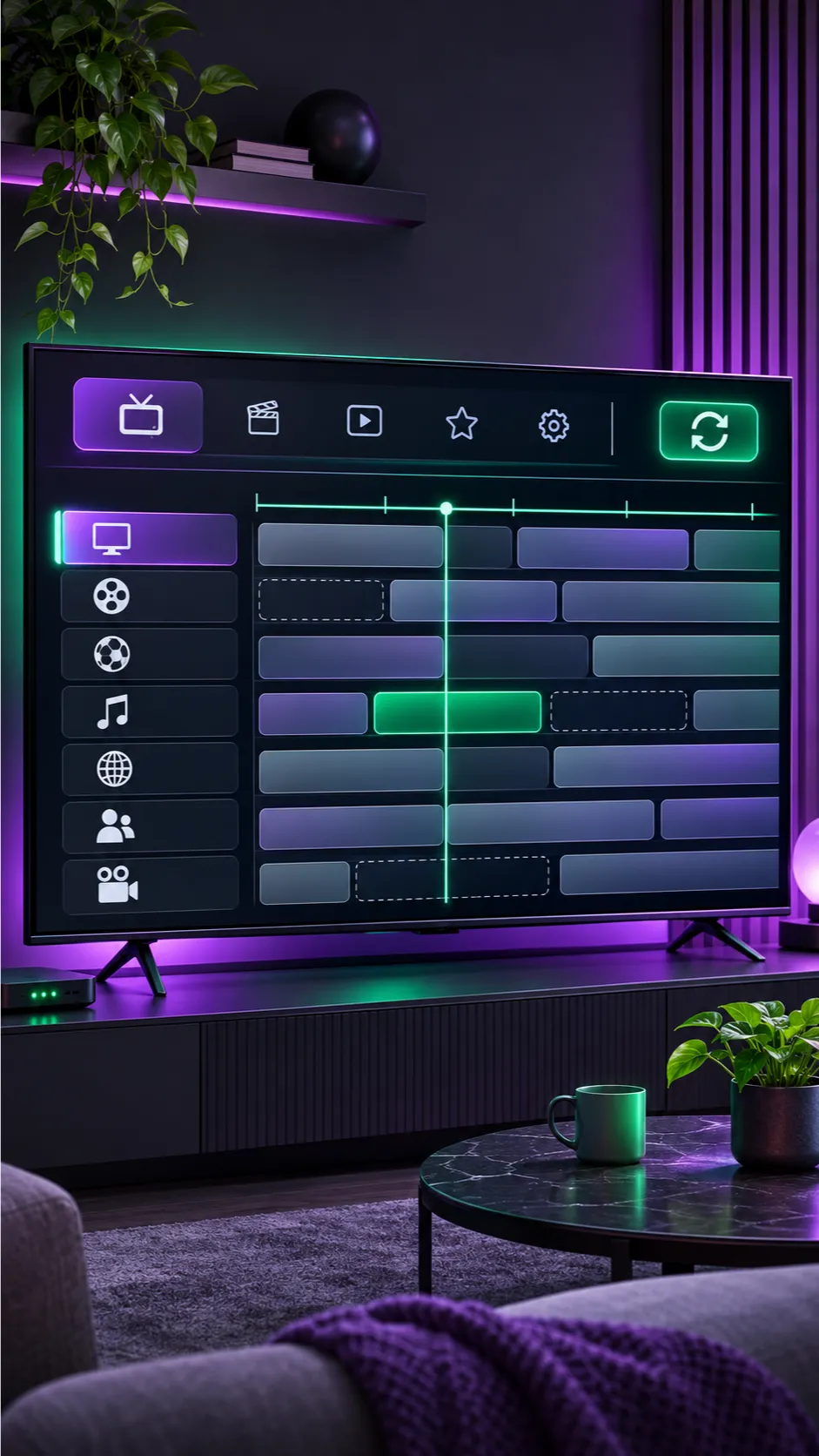
Check Channel-to-EPG Matching
This is one of the more overlooked causes of an IPTV TV guide not showing correctly.
The channel’s name in your playlist may not be enough to match it to a program listing. Some guide systems rely on a specific channel identifier.
When those identifiers don’t match, you might see a working stream but no program title.
If your player supports manual EPG assignment, open the affected channel and look for an option to associate it with the correct guide entry.
Correct Your Timezone or EPG Offset
Perhaps the guide is loading, but your favorite program is scheduled three hours too early.
That usually points to a timing issue rather than a missing guide. Check that your device’s date, time, and timezone are correct.
Then inspect the IPTV app for an EPG Time Shift or similar setting, if available.
Make small adjustments only when needed. Don’t apply a timezone correction automatically if the program times are already correct.
Wait for Fresh Schedule Data
Sometimes the problem is not your TV, internet, or streaming app. The guide source itself may not currently contain updated listings.
Imagine opening a newspaper that still has yesterday’s television schedule. Refreshing the page won’t create today’s listings if they haven’t been published yet.
If the guide remains outdated on multiple devices, ask your authorized source whether updated program data is available.
Clear the EPG Cache — Carefully
IPTV players often store downloaded guide information locally so you don’t need to fetch everything whenever you open the app.
That’s useful, until old data gets stuck. If your app offers a dedicated Clear EPG Cache option, it may help to remove stale guide data.
After clearing the guide cache, refresh the EPG and allow it to download.
Update or Restart Your IPTV App
If the guide isn’t behaving normally, restart the player completely. You can also restart the streaming device.
Check the app’s official store or verified developer website for a newer version.
Updates sometimes address bugs in playlist handling, guide loading, and interface behavior. They don’t guarantee a fix, but it’s a sensible step.
Avoid downloading random modified APK files advertised as special solutions for EPG problems.
Compare Another Device or Contact Support
By now, you’ve checked the main causes. The next step is to find out whether the problem follows your playlist or stays with one device.
If you’re authorized to use the same source on another device, compare the TV guide there.
- Guide works elsewhere: investigate the original app’s settings or device.
- Guide is blank everywhere: investigate the guide source or missing schedule data.
- Only certain channels fail: investigate channel mapping.
When contacting support, include your player name, device model, approximate time the issue started, and whether playback still works. Don’t share your private login details in public posts.
IPTV EPG Problems on Firestick, Android TV and Apple TV
Firestick
Begin inside the IPTV player: refresh its guide, check the playlist and EPG source, and restart the app. Exact menu names vary by player.
Android TV
Verify that the guide source belongs to the correct playlist. If your player offers EPG refresh and cache settings, try those before changing other options.
Apple TV
If you use IPTVX, check the guide refresh and playlist settings. The developer also documents custom EPG assignment for supported channels and plans.
One practical lesson applies everywhere: look for the cause before reinstalling your IPTV application. Reinstalling can remove saved settings without solving a broken guide source.
5 Mistakes That Make EPG Problems Worse
- Resetting the entire app immediately. You may lose playlists and preferences that have nothing to do with the issue.
- Trying random EPG URLs. An unrelated guide source can cause incorrect channel matches and schedules.
- Changing the time offset repeatedly. This may turn a small mismatch into a much larger one.
- Assuming every missing title is an internet problem. If streams work normally, examine guide data and mapping first.
- Sharing sensitive playlist details. Treat account credentials and private playlist URLs carefully.
A Better Troubleshooting Order
Refresh guide → Verify source → Reload playlist → Check channel mapping → Confirm timezone → Clear EPG cache → Update app → Compare devices.
This sequence moves from low-risk actions toward more involved checks.
Need Help With Your IPTV Setup?
If you’re still seeing IPTV EPG no information, or you’re unsure which player is compatible with your device, you can explore Unlimited IPTV or contact our team with your setup questions.
Frequently Asked Questions About IPTV EPG
Why is my IPTV EPG not working?
Common causes include missing guide data, an incorrect XMLTV source, outdated cache, mismatched channel IDs, or an app configuration issue. The correct fix depends on the symptom.
How do I update IPTV EPG?
Open your player’s settings and look for a TV Guide or EPG section. Choose its guide refresh command, if available, and wait for the updated data to load.
Why does my IPTV say “No Information”?
Your player may not have program listings for the selected channel, or the guide data may not match the channel identifier. Try refreshing the EPG and checking its source and mapping.
Why is my IPTV guide showing the wrong time?
Check the device’s date and timezone. If those are correct, inspect any EPG shift or offset setting in your IPTV player.
Can I fix IPTV EPG on Firestick?
Often, yes — depending on the cause. Many Fire TV-compatible players offer guide refresh or playlist options. Menu names and functionality differ between applications.
Will clearing the IPTV cache delete my channels?
A dedicated EPG-cache clear normally targets guide data, but implementations vary. Clearing an app’s entire storage can remove saved playlists and settings. Read the exact option carefully.
Why does the EPG work on one device but not another?
The devices may use different player versions, saved guide sources, time settings, or cached information. Compare their configurations before resetting either device.
Is IPTV EPG the same as a subscription?
No. EPG refers to schedule information. The streaming source and the program guide are distinct, even when a service makes both available together. Use authorized content sources.
A Missing IPTV Guide Is Usually a Problem You Can Investigate
When the guide suddenly disappears, it’s tempting to assume your entire streaming setup needs replacing. In many cases, that’s premature.
Start small. Refresh the guide. Check the source. Make sure the channel list is current. If only a few channels are affected, look at their guide assignments. If times are wrong, check the clock.
And remember: the player can display only the program information it actually receives. If your source doesn’t provide current listings, no refresh button can invent them.
Hopefully, this guide gives you a calmer, clearer way to deal with IPTV EPG not working in 2026 — without unnecessary resets or complicated guesswork.
Have a Question About Your Streaming Setup?
Explore our website or contact us to ask about devices and compatibility.
Official Troubleshooting References
- Kodi Wiki — IPTV Simple Client
- Kodi IPTV Simple — Official Project
- IPTVX — Official FAQ
- IPTVX — Official Troubleshooting
Article updated for 2026. Interfaces and app settings may change with software updates. Always use legally authorized streaming sources.