
How to Set Up IPTV on LG Smart TV in 2026: The Complete webOS Guide
You have an LG Smart TV, a comfortable couch, and a remote control. Now you want to watch compatible internet television streams without making the setup unnecessarily complicated.
The good news? You may be able to use a compatible app directly on your TV. But there’s one important thing to understand first: LG Smart TVs run webOS, not Android TV.
In this guide, we’ll walk through the practical ways to set up IPTV on LG Smart TV in 2026, explain what works, and help you avoid common installation mistakes.
Quick Answer: Can You Install IPTV on an LG Smart TV?
Yes, if a suitable app is available for your LG TV’s webOS version and region. Search the TV’s Apps section or LG Content Store, install a compatible player, and follow its instructions to add an authorized streaming source.
If a suitable app isn’t available, you may be able to use a compatible external streaming device connected by HDMI, or screen sharing where supported.
Why LG webOS Matters for IPTV
One of the biggest sources of confusion is that people often assume all Smart TVs run the same operating system.
They don’t.
LG uses webOS on its compatible Smart TV range. Android TV and Google TV use a different platform, with different applications and installation methods.
This distinction matters when searching for an IPTV player for LG webOS. An app that works on Android TV won’t automatically work on your LG television.
You cannot install an ordinary Android APK directly on an LG webOS TV as though it were an Android device. Choose an app supported by LG’s platform, or use an external supported device.
App availability can also differ by television model, software version, and country. That is why checking your own TV’s app store is more reliable than following a random list online.
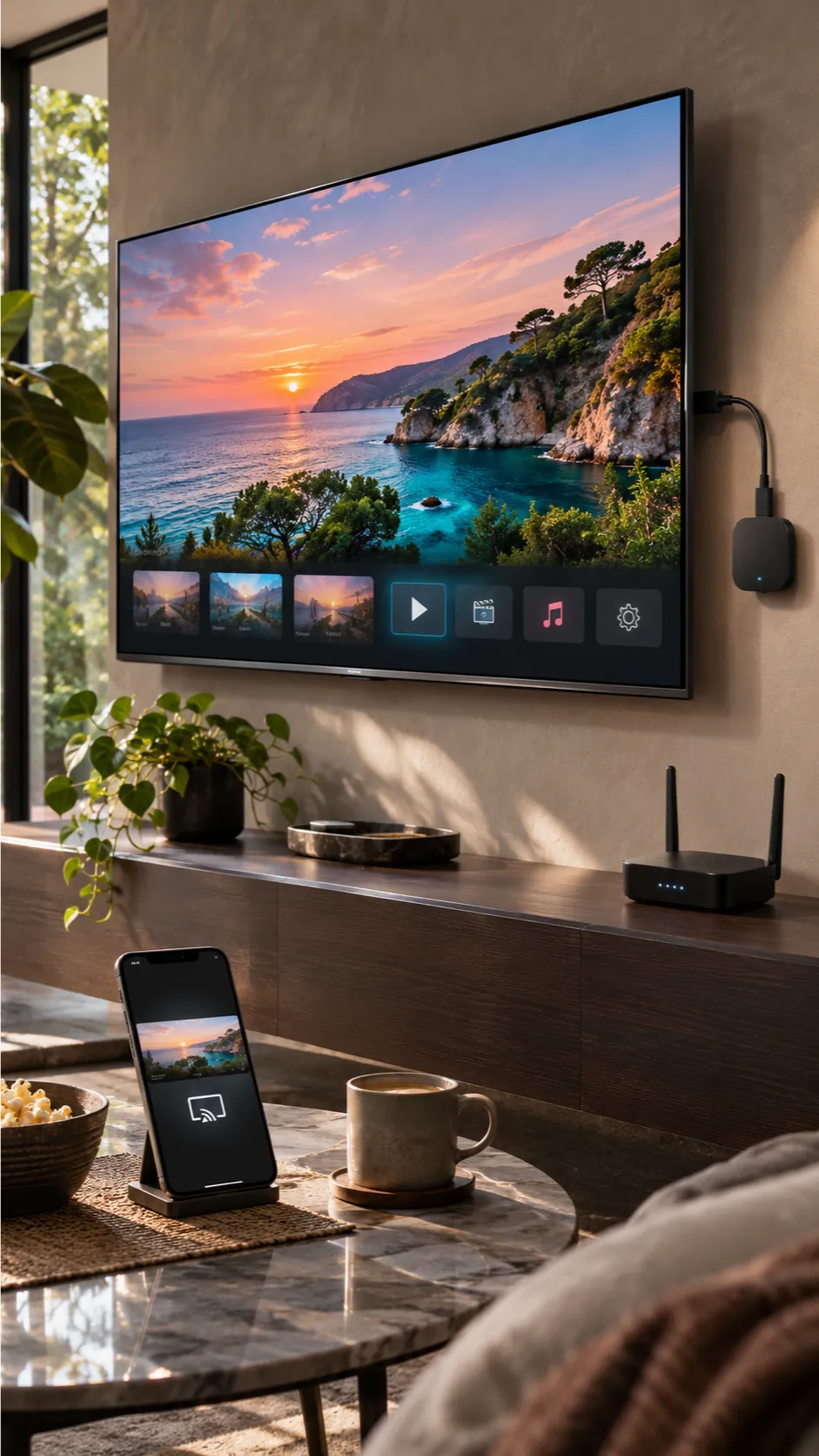
4 Practical Ways to Watch IPTV on LG Smart TV
There’s no need to force one installation method to work for everyone. The right approach depends on your TV and the equipment you already own.
For everyday viewing, a native TV app or dedicated HDMI streaming device is often easier to control with a remote. Screen mirroring can be convenient, but it may introduce compatibility or playback limitations.
How to Install a Compatible IPTV App on LG TV
Ready to try the native webOS method? Here’s a sensible way to begin. The exact names of menus may vary depending on your LG model.
-
Connect Your LG TV to the Internet
Make sure the TV is online through Wi-Fi or Ethernet. You need a working connection to download an app and access authorized streaming content.
-
Open the Apps Section
Press the Home button on your LG remote. Open the Apps section or LG Content Store, depending on your TV’s software version.
-
Search for an IPTV-Compatible Player
Use the search function to look for IPTV or a specific compatible app. Check the description and requirements.
Don’t assume an app exists for LG merely because you saw it on an Android TV tutorial.
-
Check Compatibility Before Installing
Confirm that the app supports your TV’s model or webOS version, and that its supported source formats match your authorized content source.
-
Install and Open the App
Select the compatible application and choose Install. Once installation finishes, launch it from your app list.
-
Follow the Player’s Setup Instructions
Depending on the app, you may be asked to add a playlist URL, enter provider-supplied account details, or use a pairing process.
Only enter credentials into software you trust.
-
Test Playback and Navigation
Test a stream you are allowed to watch. Check picture, sound, channel switching, and remote navigation. If available, check the TV guide too.
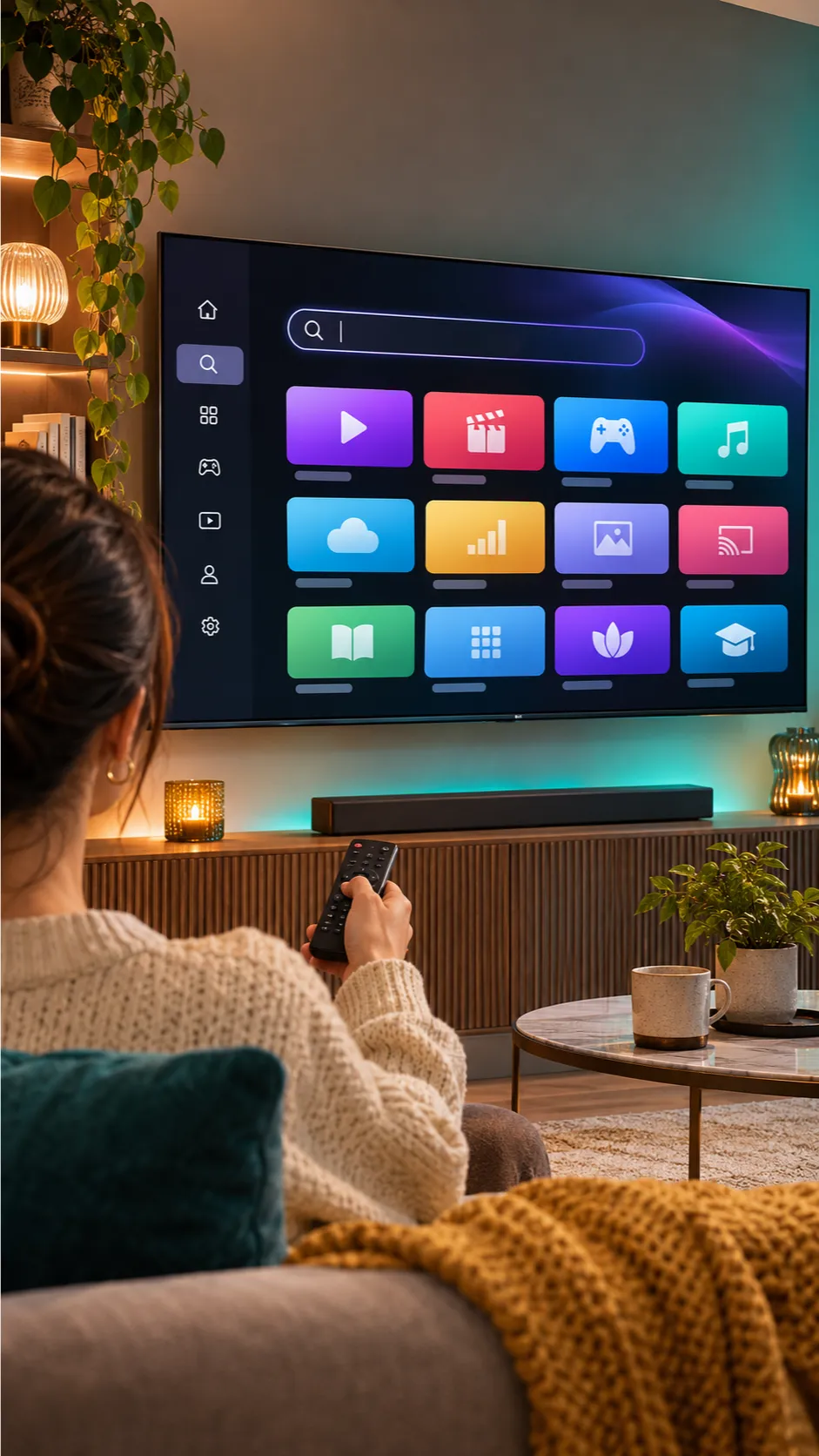
How to Add an IPTV M3U Playlist on LG TV
You may see guides talking about IPTV M3U playlists on LG TV. Let’s make that term less confusing.
M3U is a playlist format. It can contain references to media streams. A compatible player reads those references and organizes the available content.
If your authorized source provides an M3U URL and your chosen LG webOS application supports it, the basic procedure is often:
- Open the player’s playlist settings.
- Choose its supported playlist import method.
- Enter the URL supplied by your authorized source.
- Save and allow the app to load the playlist.
- Check whether guide data is available.
Not every IPTV app supports every playlist or login method. Some apps require their own activation or payment for player features. Paying for a player does not necessarily include any television channels.
If the app supports a TV guide, you may see a setting called EPG or Electronic Program Guide. Guide data is separate from the video streams and may require a compatible source.
What If Your LG TV Doesn’t Have the IPTV App You Want?
This is a common problem, particularly on older LG models or TVs with different regional app catalogs.
You might search for an IPTV application recommended online and find nothing. That doesn’t necessarily mean your television is faulty.
It may simply be unavailable for your specific model or region.
Option A: Check the LG Services Country
Review your TV’s location and region settings. LG explains that available services and apps can depend on these settings. Use the correct region for your actual location and don’t assume changing it will make every application compatible.
Option B: Use a Compatible HDMI Device
A streaming device with its own supported app ecosystem may be a practical solution. The LG TV becomes your display, while the external device handles the streaming software.
Option C: Check AirPlay or Screen Sharing
If your TV and phone support a common sharing method, test it with a legitimate compatible video source. Some applications restrict casting or screen mirroring.
Common IPTV Problems on LG Smart TV and What to Try
Even after installation, things don’t always work perfectly on the first try. Here are the situations worth checking.
| Problem | Possible Reason | What to Try |
|---|---|---|
| App missing from the LG store | App unavailable for your model, webOS version or region | Check official compatibility or use a supported HDMI device |
| App won’t install | Network, account, storage or user agreement issue | Check internet, LG Account, available storage and agreements |
| Playlist won’t load | Unsupported format, incorrect source information or temporary connection problem | Check player requirements and verify your authorized source |
| Video keeps buffering | Unstable Wi-Fi, device performance or source interruptions | Test network stability, restart devices and compare a different stream |
| TV guide is blank | Missing EPG data or incorrect guide mapping | Refresh guide data and check the source |
| No sound | Audio format or playback setting may be incompatible | Check TV audio output and player sound options |
The most useful diagnostic question is simple: does the problem happen with every stream, or only one?
If one channel fails while everything else works, focus on that source. If every application on your TV struggles, investigate the wider TV or network setup.
5 Tips for a Better IPTV Experience on LG TV
- Use a stable internet connection. Consistent connection quality matters more than a single impressive speed test.
- Keep your television software updated. Use LG’s normal software update process.
- Choose a remote-friendly application. A complicated interface can make everyday viewing frustrating.
- Use trusted, authorized content sources. A media player does not automatically grant access rights to any channel.
- Check the guide before relying on it. Program listings depend on the data provided by the configured source.
Frequently Asked Questions About IPTV on LG Smart TV
Can I install IPTV on an LG Smart TV in 2026?
You can install an IPTV-compatible player if one is available for your LG TV’s webOS version, model and region. Check the LG app store on your television.
What is the best IPTV app for LG Smart TV?
The best option depends on the apps actually offered for your specific LG TV, the formats they support, and the features you need. Verify current availability in LG’s official app catalog before choosing.
Can I install an Android APK on an LG TV?
Not directly on the native webOS system. Ordinary Android APKs are made for Android, not LG’s webOS platform. Use a supported webOS app or an external Android-based streaming device.
How do I add an M3U playlist to my LG TV?
If your installed IPTV player supports M3U, look for its playlist import option and enter the URL supplied by your authorized source. The exact procedure depends on the app.
Why can’t I find an IPTV app on my LG TV?
The app may not support your webOS version, television model or region. Check the official LG app catalog and the app developer’s compatibility details.
Does IPTV work on older LG Smart TVs?
It depends on the TV model, available applications and supported features. An external HDMI streaming device may be useful when a native app is unavailable.
Can I use AirPlay for IPTV on LG TV?
On compatible LG televisions, AirPlay can share supported content from Apple devices. The streaming application’s own playback and casting restrictions still apply.
Do IPTV player apps include TV channels?
Many IPTV players are simply media applications. They do not include channels or a subscription. Use content you are authorized to access.
The Simplest Way to Set Up IPTV on LG Smart TV
If there’s one thing to remember, it’s this: don’t treat your LG television like an Android TV.
First, see whether a compatible IPTV application is available in the LG app store. If it is, follow that player’s instructions for connecting your authorized content source.
If the app you want isn’t compatible with webOS, consider an external streaming device with its own supported app ecosystem.
And if you only want to watch something occasionally, supported screen sharing may be worth testing.
That’s the practical approach to IPTV on LG Smart TV in 2026: check compatibility first, choose a suitable connection method, and keep the setup simple.
Have Questions About Your IPTV Setup?
Explore Unlimited IPTV or contact us to ask about devices, compatibility, and getting started.
Official References
- LG: Using the Content Store with webOS
- LG: Finding Compatible Apps
- LG: AirPlay Support
- LG: Installing and Managing Apps
Editorial guide updated for 2026. App availability and support vary by television model, country and software version. Use only authorized streaming content.