
How to Watch IPTV on Roku in 2026: 4 Easy Methods That Actually Work
You’ve got a Roku TV or Roku streaming player. Your favorite spot on the couch is ready. But there’s one question: can you watch IPTV on Roku?
The answer is a little more complicated than most online tutorials make it sound. Roku has its own operating system, so the same Android IPTV apps you see in Firestick tutorials won’t necessarily install on it.
Don’t worry. In this guide, we’ll explain four practical ways to watch compatible, authorized internet TV content, what each method requires, and how to avoid wasting time on instructions that don’t work.
Quick Answer: Does IPTV Work on Roku?
Yes, but the available method depends on your device and content source.
You can check Roku’s Streaming Store for a compatible authorized app. Some compatible Roku devices also support AirPlay from Apple devices or screen mirroring from supported Android and Windows devices.
If you need an application available only on another platform, using a separate HDMI streaming device with your television may be the more practical option.
Why IPTV on Roku Is Different From Firestick
When someone searches how to install IPTV on Roku, they often find instructions originally written for Android TV or Amazon Fire TV.
That’s where confusion begins.
Roku uses its own platform. It doesn’t run ordinary Android APK files as native Roku applications.
So if a tutorial tells you to download an Android APK and install it directly on Roku, stop and check whether those instructions really apply.
A Roku-compatible app comes from Roku’s supported app ecosystem. An Android IPTV player belongs to a different operating system. The names may sound similar, but the software is not interchangeable.
That doesn’t mean Roku is useless for internet television. It simply means you need to choose a compatible approach.
The 4 Ways to Watch IPTV on Roku in 2026
Let’s look at the real options. Each one has advantages, and each has limitations.
Use a Roku-Compatible App
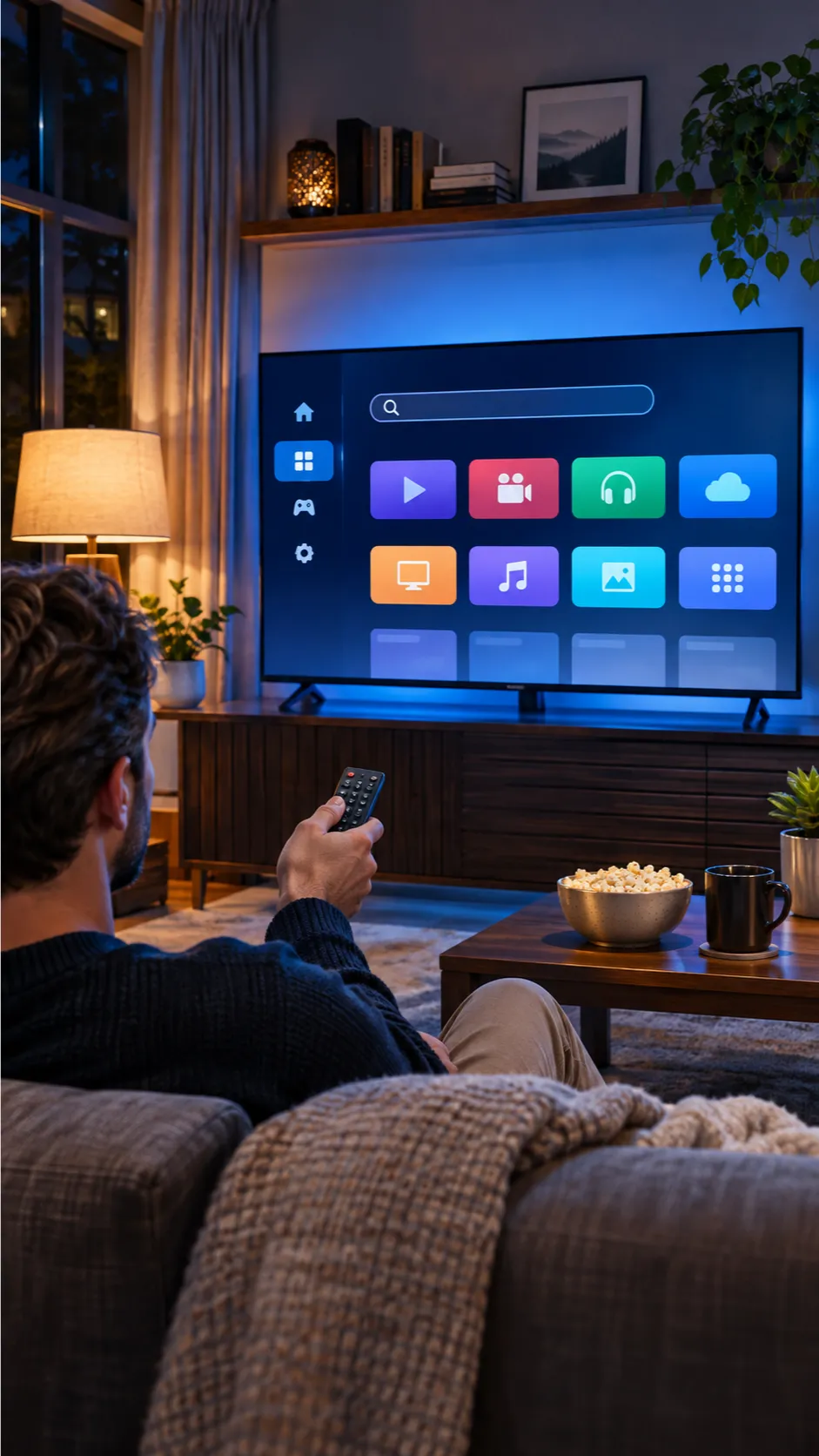
Search Roku’s official Streaming Store. If an authorized streaming app supports your Roku device and content source, install it directly.
Good for: People who want a simple, remote-controlled experience.
Use Apple AirPlay
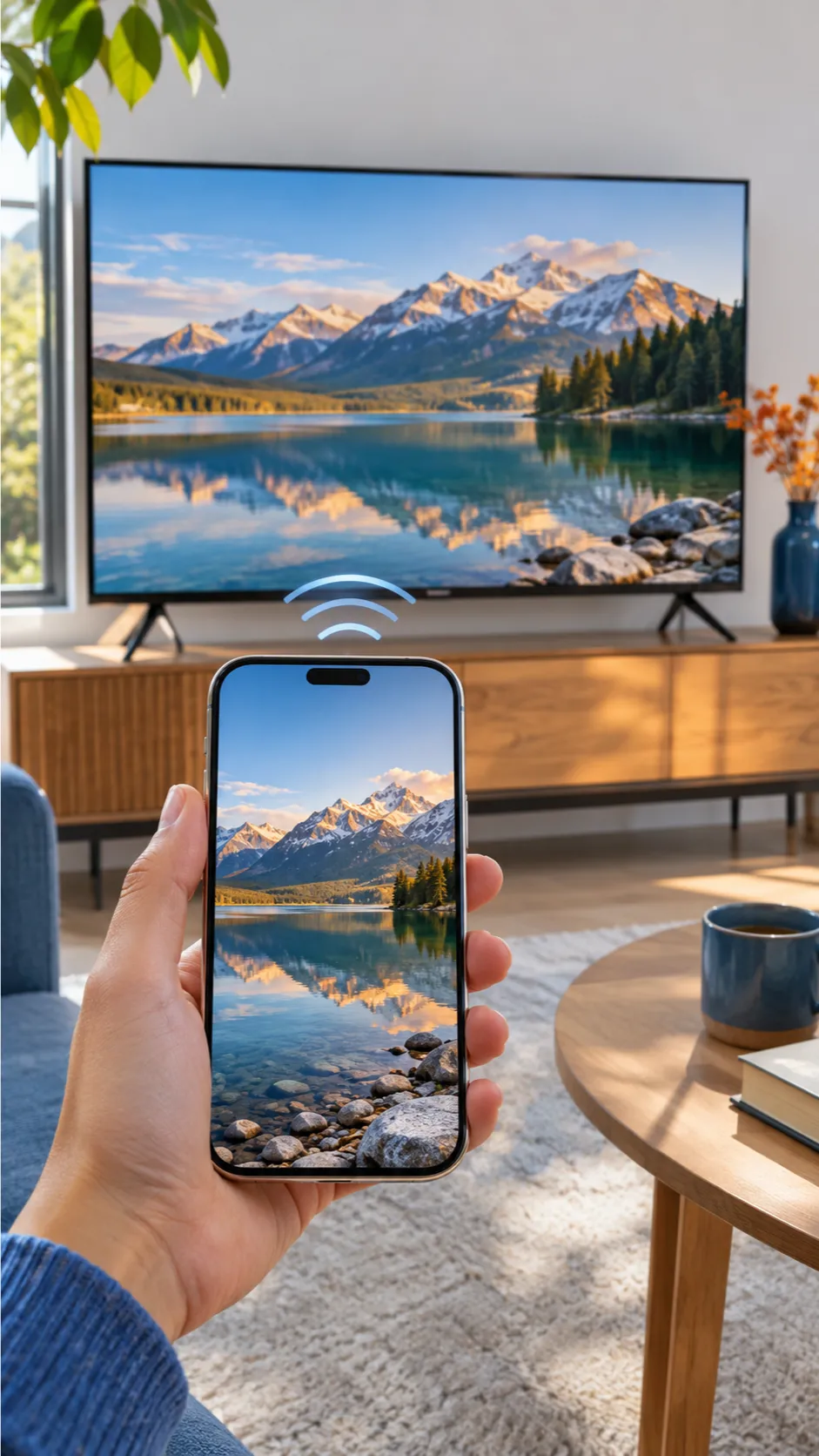
Compatible Roku devices support AirPlay, allowing supported content to be shared from an iPhone, iPad or Mac. The playback app must permit it.
Good for: Apple-device owners.
Use Screen Mirroring
Supported Android and Windows devices can mirror their screen to compatible Roku devices. This can be useful when a native Roku app isn’t available.
Good for: Occasional viewing from another device.
Use a Separate HDMI Device
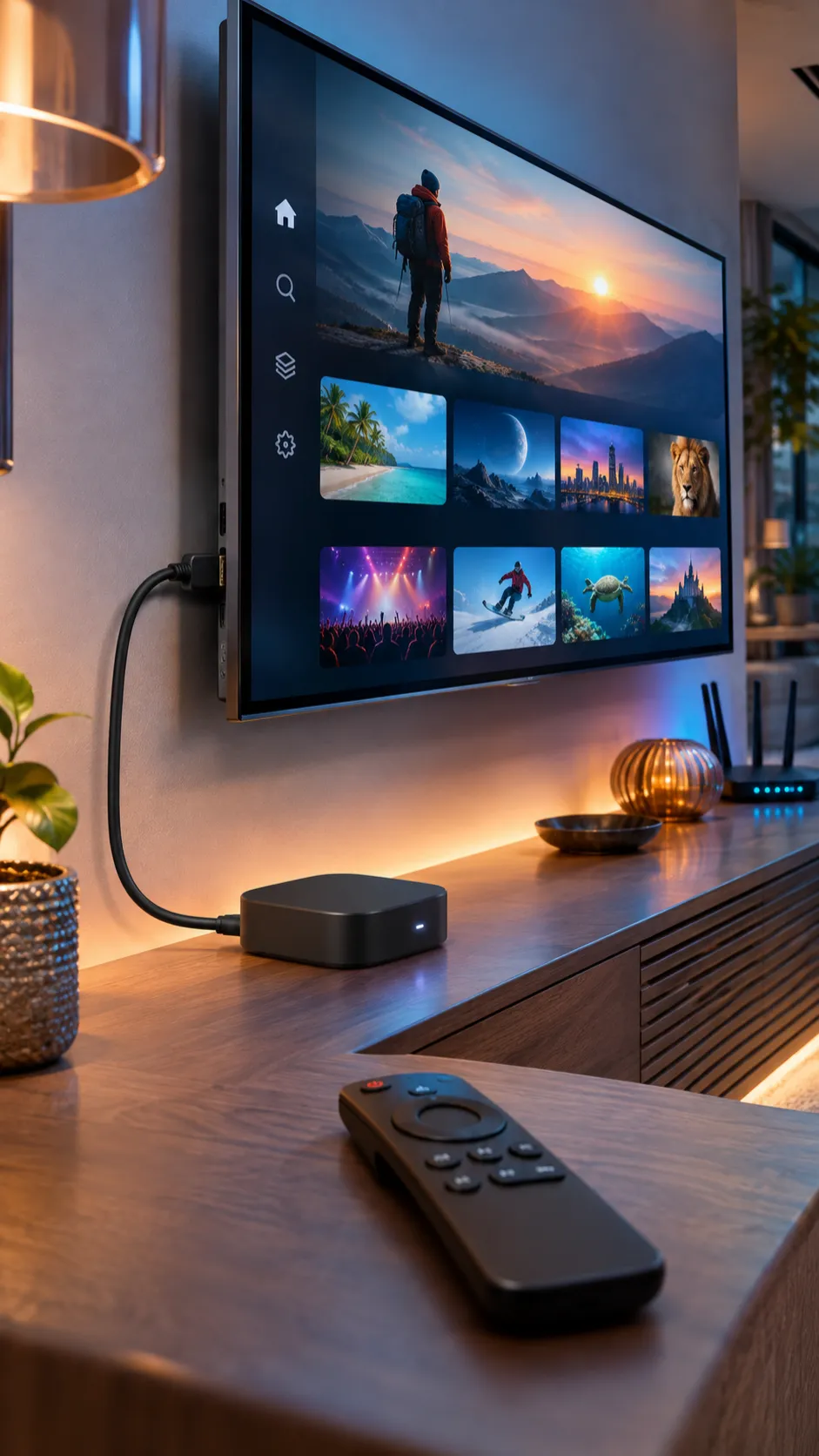
Connect a supported streaming player to a free HDMI input on the television. That player runs its own apps independently of Roku.
Good for: Viewers who need apps that Roku itself doesn’t support.
None of these methods automatically provides television subscriptions. You’ll still need content you have permission to watch.
How to Install an IPTV-Compatible App on Roku
If you prefer controlling everything with the Roku remote, begin with its official app store.
Connect Roku to the Internet
Check your network connection and make sure your Roku device can open its normal streaming apps.
Open the Roku Streaming Store
From the Roku interface, open the Streaming Store or the option for adding apps.
Search for a Compatible Application
Search by the name of a legitimate streaming application. Read the app description, supported devices and requirements.
Don’t assume a player is supported just because the same name appears on an Android download website.
Install the App
If a suitable official Roku app is available, select its installation option and wait for it to appear on your device.
Follow Its Supported Login or Setup Process
Open the app and follow the instructions supplied by the app developer or your authorized content provider.
Not every Roku app supports M3U playlists or external source URLs. Check this before installing or paying.
Test Playback
Test the app’s playback, sound and remote navigation. Confirm that your source supports the Roku version.
How to Watch IPTV on Roku Using AirPlay or Screen Mirroring
If your desired streaming app isn’t available in Roku’s store, your phone or computer might offer another route.
Using AirPlay From an Apple Device
On a compatible Roku device, AirPlay can share supported video or mirror the display of an iPhone, iPad or Mac.
- Check whether your Roku model supports AirPlay.
- Connect the Apple device and Roku to the same local network.
- Open a supported application with content you’re authorized to view.
- If the application provides AirPlay, select your Roku device. Alternatively, use supported screen mirroring.
- Follow any on-screen connection or confirmation steps.
Not every video application allows AirPlay or screen mirroring. Some streams may be restricted by licensing or app design. Compatibility must be tested with the app you’re using.
Using Screen Mirroring From Android or Windows
Some Roku devices support screen mirroring from compatible Android phones or Windows computers.
The general process is to enable supported screen mirroring on Roku, start the connection from your phone or computer, and approve the request on the television.
Device manufacturers may use different names for screen mirroring. Your Android phone must support a compatible method.
Remember that screen mirroring is not necessarily the same as sending a video stream directly to the TV. Performance can depend on your local network and device.
Using Another Streaming Device With a Roku TV
Here’s an option people sometimes overlook.
If you own a Roku TV, you can still connect compatible equipment to its HDMI inputs. The television doesn’t have to use Roku’s built-in software for every source.
For example, a separate Android TV, Google TV, Fire TV or Apple TV device can run applications designed for its own platform.
You simply connect that device to the television and select its HDMI input.
The external player manages the apps and playback. Roku itself is not running those external applications.
When This Method Makes Sense
Suppose the IPTV player you want is available on Android TV but not through Roku’s Streaming Store. A compatible Android-based streaming device may let you use that player without replacing your television.
Check the app’s compatibility and use a legitimate source.
If you use a Roku stick connected to an ordinary television, the same principle applies: connect the other streaming device to another available HDMI input on the television.
Which Roku IPTV Setup Method Should You Choose?
| Method | Best For | Main Requirement | Limitation |
|---|---|---|---|
| Roku Store App | Everyday remote-based viewing | A compatible Roku application | Available apps and source support vary |
| Apple AirPlay | iPhone, iPad and Mac users | AirPlay-compatible Roku and supported app | Some content cannot be shared |
| Screen Mirroring | Supported Android and Windows devices | Compatible mirroring on both devices | May be less convenient for daily TV use |
| HDMI Streaming Device | More app choices | Extra compatible hardware and HDMI input | Additional device and possible cost |
For a simple experience, start with Roku’s official app store. If you already own a supported phone, screen sharing may be worth testing. For broader app compatibility, a separate streaming device may make more sense.
Common IPTV on Roku Problems and How to Troubleshoot Them
1. The App Doesn’t Appear in Roku’s Store
It may not be offered for your Roku model or account region, or the developer may not provide a Roku version.
Check the developer’s official compatibility information rather than downloading an unrelated Android APK.
2. My Phone Can’t Find Roku for Mirroring
First, check that the two devices are connected to the same local network. Then confirm that both devices support the relevant sharing technology.
Restarting the devices may help with a temporary discovery problem.
3. I Can Mirror My Phone, but Video Is Black
Some applications restrict screen capture or sharing of protected video. In that situation, mirroring the phone interface doesn’t guarantee that the video itself can play.
Use a supported official application or playback method instead.
4. The Stream Keeps Buffering
A player can’t guarantee zero buffering. Check your Wi-Fi quality, network congestion, playback device performance, and the reliability of the source.
5. There’s No Sound
Check the TV volume and audio output. If you’re using another HDMI device, inspect its own audio settings as well.
The issue may also involve the audio format provided by the particular stream.
Three Things to Avoid When Setting Up IPTV on Roku
- Following Android APK tutorials for Roku. Roku has a different operating system. An APK isn’t a native Roku app.
- Paying before confirming compatibility. Check that the software supports your exact device and authorized content source first.
- Trusting promises of unlimited free premium channels. An IPTV player is not proof that a content source has the necessary distribution rights.
IPTV on Roku 2026: FAQ
Can I watch IPTV on Roku in 2026?
Yes, if you use a compatible authorized application or a supported sharing method. Options vary by device, app and content source.
Can I install an IPTV APK on Roku?
No. Ordinary Android APK files cannot be installed as native Roku apps. Use the Roku Streaming Store or a separate Android-compatible device.
Is there an IPTV app for Roku TV?
Roku offers applications through its Streaming Store, but availability and IPTV playlist support vary. Check the store on your device and the app developer’s official details.
Does Roku support AirPlay?
Many compatible Roku models support Apple AirPlay. Check Roku’s official compatibility list and ensure your device software meets the requirements.
Can I screen mirror Android IPTV apps to Roku?
Some Android devices can mirror their screen to compatible Roku devices. However, app restrictions and playback compatibility may prevent certain video streams from appearing.
Can I connect a Fire TV device to a Roku TV?
A compatible Fire TV device can connect to an available HDMI input on a Roku TV. Select the corresponding HDMI source to use the external device.
Do IPTV players provide their own channels?
Many IPTV players do not supply television content. They play streams from a separately configured source. Use services and streams you are authorized to access.
What is the easiest IPTV setup for Roku?
Start by checking whether a suitable Roku-native application is available. If there isn’t one, compare AirPlay, screen mirroring and an external streaming device based on your existing equipment.
The Best Way to Watch IPTV on Roku Is the One Your Device Actually Supports
Roku can be a convenient home entertainment platform. The trick is understanding what it can — and cannot — run.
Instead of spending hours following unsuitable Android installation videos, begin with Roku’s supported app store.
If your preferred player isn’t available, test a compatible sharing method or consider a separate HDMI streaming device.
Whatever method you choose, prioritize compatibility, stable playback and authorized content.
That’s the practical approach to IPTV on Roku in 2026: understand the platform, choose a real supported method, and keep the experience simple.
Need Help Choosing Your IPTV Setup?
Visit Unlimited IPTV to explore our website, or contact us with your device and compatibility questions.
Official References
- Roku: Adding Apps From the Streaming Store
- Roku: Screen Mirroring Instructions
- Roku: Using AirPlay
- Roku: Ways to Share Media
Article updated for 2026. Roku model compatibility, app availability and supported sharing features may change. Use legally authorized streaming sources.