
How to Fix IPTV Buffering on Firestick in 2026: 10 Proven Troubleshooting Tips
Your favorite show is finally getting good. You settle into the couch, press play, and suddenly the picture freezes. That little loading circle appears again. Sound familiar? Let’s work through it together.
IPTV Keeps Freezing on Firestick? You’re Not Alone.
There are few things more frustrating than getting comfortable for a movie or a live event only to watch your television stop every few minutes.
If you’re dealing with IPTV buffering on Firestick, the good news is that the problem may be easier to solve than you think. Sometimes all it takes is restarting the app. Other times, a weak Wi-Fi signal, an outdated player, or a problem with the streaming source is responsible.
This guide explains how to fix IPTV buffering without requiring advanced technical skills. We’ll start with the quickest solutions and move toward the checks that take a little more time.
The important thing to remember: Buffering does not automatically mean your Firestick is broken. Video playback involves several moving parts: your internet connection, your Wi-Fi network, your device, your player app, and the streaming service itself.
Why does IPTV buffer in the first place?
A video stream needs to download enough data to keep playing smoothly. When the video consumes data faster than it arrives, playback pauses while the app waits for more.
That pause is buffering. A short pause when starting a video can be normal. Repeated freezing every few minutes usually deserves some troubleshooting.
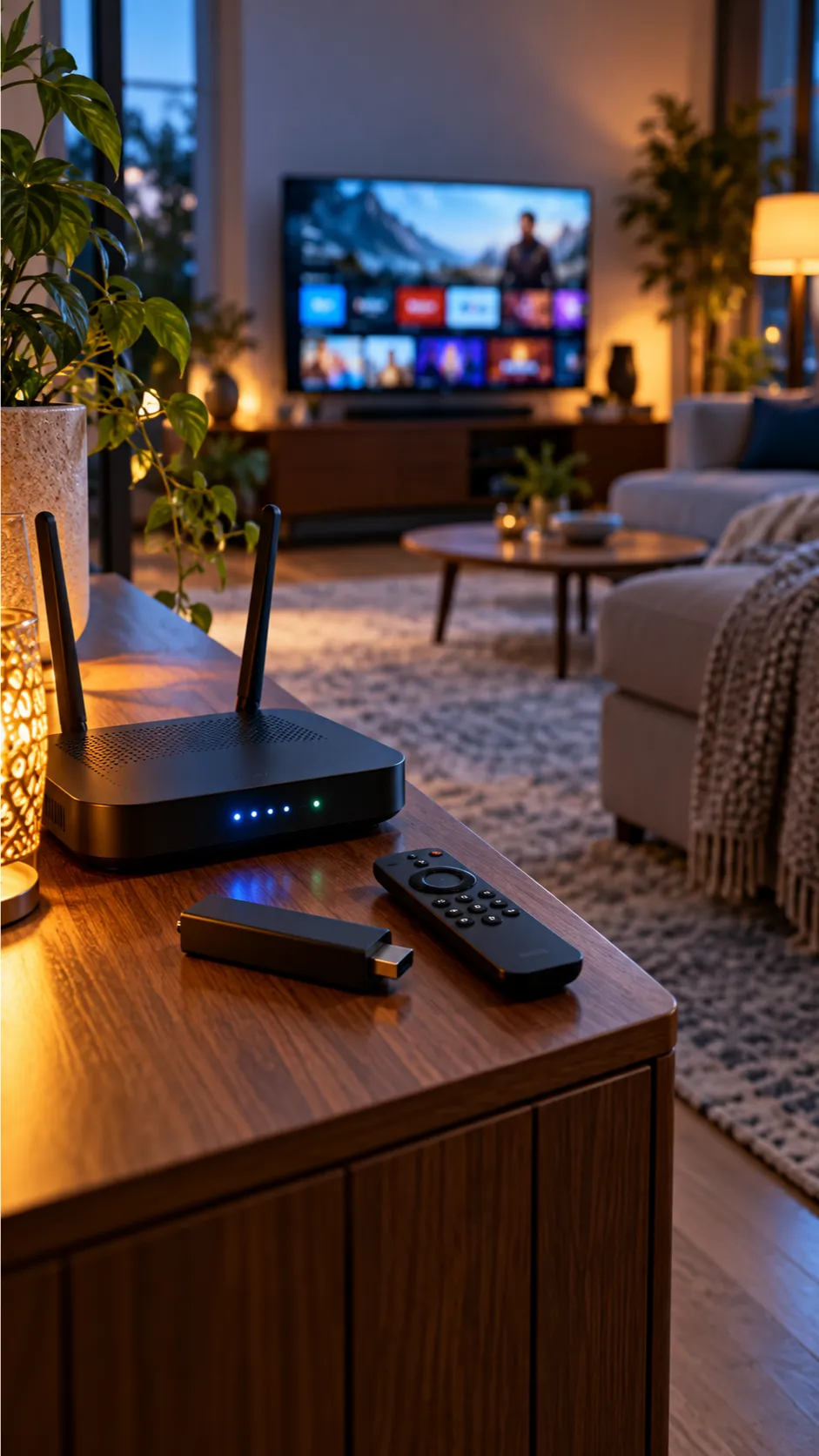
A 60-Second Check That Could Save You Time
Rather than changing every setting on your Firestick, start by noticing when the buffering happens.
| What You Notice | What It Might Mean | Where to Start |
|---|---|---|
| Every streaming app buffers | Internet, Wi-Fi, or device issue | Fixes 3, 4, 5 and 6 |
| Only one app buffers | App cache, settings, or app service | Fixes 2, 7, 8 and 9 |
| Only one channel or video buffers | Problem with that particular stream | Fix 10 |
| Buffering gets worse in the evening | Network congestion or busy service | Fixes 5, 6 and 10 |
| HD plays but 4K keeps freezing | Insufficient bandwidth or decoding limits | Fixes 6 and 9 |
This is not a guaranteed diagnosis, but it helps you choose the most relevant troubleshooting steps.
10 Troubleshooting Tips to Fix IPTV Buffering on Firestick
Try the fixes in order if you are unsure what is causing the problem. After each one, play the same video for several minutes to see whether things improve.
Find Out Whether the Problem Is Your Internet, App, or Stream
Imagine replacing your router only to discover the original problem was one particular video. That’s why the first test matters.
- Open another legitimate streaming app on your Firestick.
- Play a video for a few minutes.
- Return to your IPTV player.
- Test a second channel or program that you are authorized to watch.
If everything buffers, check your network. If only your IPTV player buffers, focus on that app or service. If just one stream has a problem, the source may be responsible.
Restart Your IPTV Player App
Apps sometimes become sluggish after running for long periods. A fresh start can clear a temporary playback glitch.
- Go to your Fire TV home screen.
- Open Settings.
- Select Applications.
- Choose Manage Installed Applications.
- Select your IPTV player app.
- Choose Force Stop, if available.
- Open the app again.
The exact menu wording may differ depending on your Fire TV device and software version.
Restart Your Firestick Completely
Closing the player is useful, but sometimes the Firestick itself needs a fresh start.
A normal restart can clear temporary system issues without removing your installed applications.
- Open Settings.
- Choose My Fire TV or the equivalent device menu.
- Select Restart.
- Wait for the device to reboot.
- Open your streaming app again.
If the interface is completely unresponsive, follow your device’s official restart instructions.
Restart Your Wi-Fi Router
Your Firestick might be perfectly fine. Sometimes the router is having trouble maintaining a stable connection.
- Turn off or unplug your router according to its manufacturer’s guidance.
- Wait approximately 30 seconds.
- Reconnect the power.
- Allow the router to finish reconnecting.
- Test IPTV streaming again.
If you have a separate modem and router, follow the equipment provider’s recommended restart sequence.
A Great Streaming Setup Starts With Stable Wi-Fi
Fast internet sounds impressive, but consistent delivery matters just as much. A connection that swings between fast and slow can still interrupt a movie or live stream.
Before paying for a faster internet plan, make sure the Firestick is receiving a strong signal where your television is located.
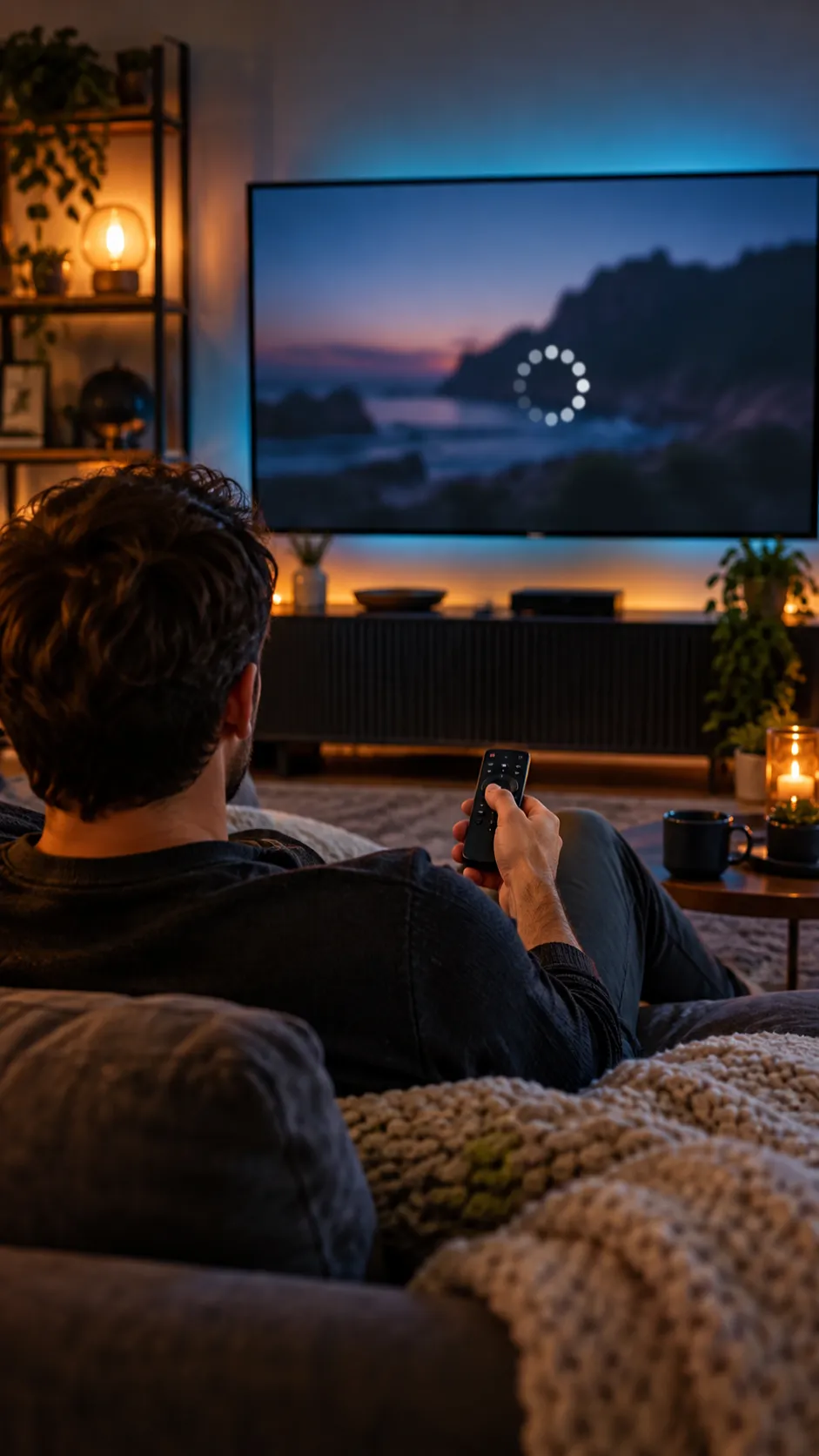
Improve the Wi-Fi Signal Reaching Your Firestick
A Firestick hidden behind a large television may receive a weaker Wi-Fi signal than your phone sitting a few feet away.
Thick walls, furniture, interference, and long distances from the router can also affect performance.
- Move your router into a more open position where practical.
- Keep the router away from major sources of interference.
- Consider using the HDMI extender supplied with compatible Fire TV Stick models to improve positioning.
- Try a 5 GHz Wi-Fi connection when the router is nearby and the signal is strong.
- Try 2.4 GHz if you are farther from the router or need better reach.
- Consider a compatible wired Ethernet adapter if your setup supports it.
Neither Wi-Fi band is automatically better in every home. What matters is the actual signal quality at your television.
Check Your Actual Internet Speed
You might be paying for a fast connection but getting much less speed where your Firestick is installed.
Run a speed test using a trustworthy tool available on your device or another device connected to the same Wi-Fi network.
For general planning, the following are approximate starting points for one video stream:
| Streaming Quality | Illustrative Download Speed |
|---|---|
| Standard Definition | About 3–5 Mbps |
| High Definition | About 5–10 Mbps |
| 4K / Ultra HD | Often 15–25 Mbps or more |
Actual requirements vary by service, video compression, device, and simultaneous household usage. These numbers are not guarantees of buffer-free playback.
If several family members are gaming, downloading files, and watching 4K content at the same time, your connection needs enough capacity for all those activities.
Clear the IPTV Player’s Cache
This is one of the most useful Firestick IPTV buffering fix steps when a particular app starts behaving strangely.
Applications store temporary files called cache. Those files can help apps run efficiently, but temporary app data can occasionally become outdated or problematic.
- Open Settings.
- Select Applications.
- Open Manage Installed Applications.
- Select your IPTV player.
- Choose Clear Cache.
- Reopen the player and test it.
Update Your Firestick and IPTV App
Software updates can fix bugs, improve stability, and address compatibility problems.
If your IPTV keeps freezing on Firestick after months without an update, it’s worth checking both the Fire TV software and the player app.
Check Fire TV updates
- Open Settings.
- Go to My Fire TV or your device settings menu.
- Select About.
- Look for Check for Updates or an equivalent option.
- Install available official updates.
Check your IPTV player
For apps installed through the Amazon Appstore, check whether an update is available through the app’s official listing or update controls.
Only install trusted software from legitimate sources.
Adjust Stream Quality and Player Settings
Watching everything in the highest available resolution sounds great. But not every connection or device can handle every stream equally well.
If your IPTV player provides the appropriate controls, try these adjustments one at a time:
- Switch from 4K to HD temporarily to see whether the stream stabilizes.
- Use an automatic quality option, if your player and service support it.
- Test the player’s supported hardware or software decoding modes if playback is unstable.
- Return to the recommended default settings if an experiment makes performance worse.
Player settings vary by app. A feature available in one IPTV player might not exist in another.
And remember, lowering the quality will not solve every problem. If a source stream is unavailable, changing resolution may not help.
Check Your IPTV Service and Contact Support
Let’s say you’ve restarted the Firestick, tested your Wi-Fi, cleared the cache, and tried a different device.
Your internet works perfectly everywhere else, yet one particular IPTV stream still freezes.
At this point, it’s sensible to contact the service responsible for that stream.
When speaking to support, share:
- Your Fire TV device model.
- Your IPTV player app name.
- Whether the problem affects all streams or only certain content.
- The approximate time the problem started.
- Which troubleshooting steps you already completed.
A legitimate service provider should be able to explain its supported devices, technical requirements, and available support options.
Always use streaming services that have the necessary rights to distribute the content you watch.
Could Your Firestick Be Overheating?
Some playback problems are made worse by poor device ventilation, unreliable power, or a Firestick squeezed into a hot space behind the television.
Give the device enough room for ventilation, use an appropriate power adapter, and avoid placing it near heat sources.
If the Firestick feels unusually hot, behaves erratically, or repeatedly shuts down, stop using it until you can check the manufacturer’s guidance.
The Quick Firestick Buffering Checklist
Don’t feel like rereading the entire guide next time? Here are the main things to remember.
The Goal: Less Troubleshooting, More Enjoying Your TV
Nobody buys a streaming device because they love navigating settings menus.
You want to put your feet up, find something enjoyable to watch, and have the picture keep playing.
A little time spent checking your network and device today can make your home streaming experience much easier to manage.

Need Help With Your Streaming Setup?
Still have questions about setting up a compatible IPTV player, choosing the right device, or understanding your streaming options?
Visit Unlimited IPTV to explore the available information, or contact us directly on WhatsApp with your questions.
IPTV Buffering on Firestick: Common Questions Answered
1. Why does my IPTV keep buffering on Firestick?
Common causes include an unstable internet connection, weak Wi-Fi, application problems, device performance limitations, or issues with the streaming source. Testing different apps and streams can help narrow down the cause.
2. How do I stop IPTV from freezing every few minutes?
Start by restarting the player and Firestick. Then test your Wi-Fi, check your connection speed, clear the app cache, and install available updates. If the issue affects only one source, contact the streaming service.
3. Is 50 Mbps enough for IPTV on Firestick?
A stable 50 Mbps connection is generally sufficient for many individual HD and 4K video streams, but actual performance depends on the service’s bitrate, network congestion, Wi-Fi quality, and other devices sharing the connection.
4. Does clearing cache fix IPTV buffering?
It can help when temporary app files contribute to slow or unstable playback. However, cache clearing will not repair a weak internet connection or an unavailable video source.
5. Is 5 GHz Wi-Fi better for IPTV on Firestick?
A strong 5 GHz connection may provide better performance in some homes, especially when the router is close to the television. However, 2.4 GHz may provide more reliable coverage over longer distances. Test both if your router and device support them.
6. Why does IPTV buffer even when my internet is fast?
Your advertised internet speed is only part of the picture. Wi-Fi interference, temporary packet loss, device limitations, app behavior, and problems at the streaming source can all affect playback.
7. Should I buy a new Firestick to fix IPTV buffering?
Not immediately. Try the basic troubleshooting steps first. A newer device may help if the existing one is genuinely struggling with supported video formats or performance, but replacing hardware will not fix every network or service problem.
8. Can changing IPTV players reduce buffering?
Sometimes. Different compatible players can handle video formats and decoding differently. However, changing the player cannot guarantee that a problematic source stream will become reliable.
Fix the Cause, Not Just the Loading Circle
If you’ve reached this point, you now have a practical plan for dealing with IPTV buffering on Firestick.
My advice? Start small. Restart the app, check another video, and test your Wi-Fi. You may discover that the solution is much simpler than expected.
And if the first few steps don’t work, don’t worry. Move through the checklist, change one thing at a time, and pay attention to the results.
A little patience and a few targeted adjustments can often make a noticeable difference. Then you can get back to what you actually wanted to do: enjoy your television.