
FIRESTICK IPTV SETUP GUIDE • 2026
How to Set Up IPTV on Firestick in 2026: The Complete Beginner’s Guide
Want to learn how to set up IPTV on Firestick? This complete beginner’s guide walks you through connecting your Fire TV Stick, installing a compatible streaming application, adding your subscription details, and fixing common playback problems.
Whether you’re using a Fire TV Stick HD, Fire TV Stick 4K, or another compatible Fire TV device, these practical steps will help you understand the setup process in 2026.
Explore Unlimited IPTV Ask on WhatsApp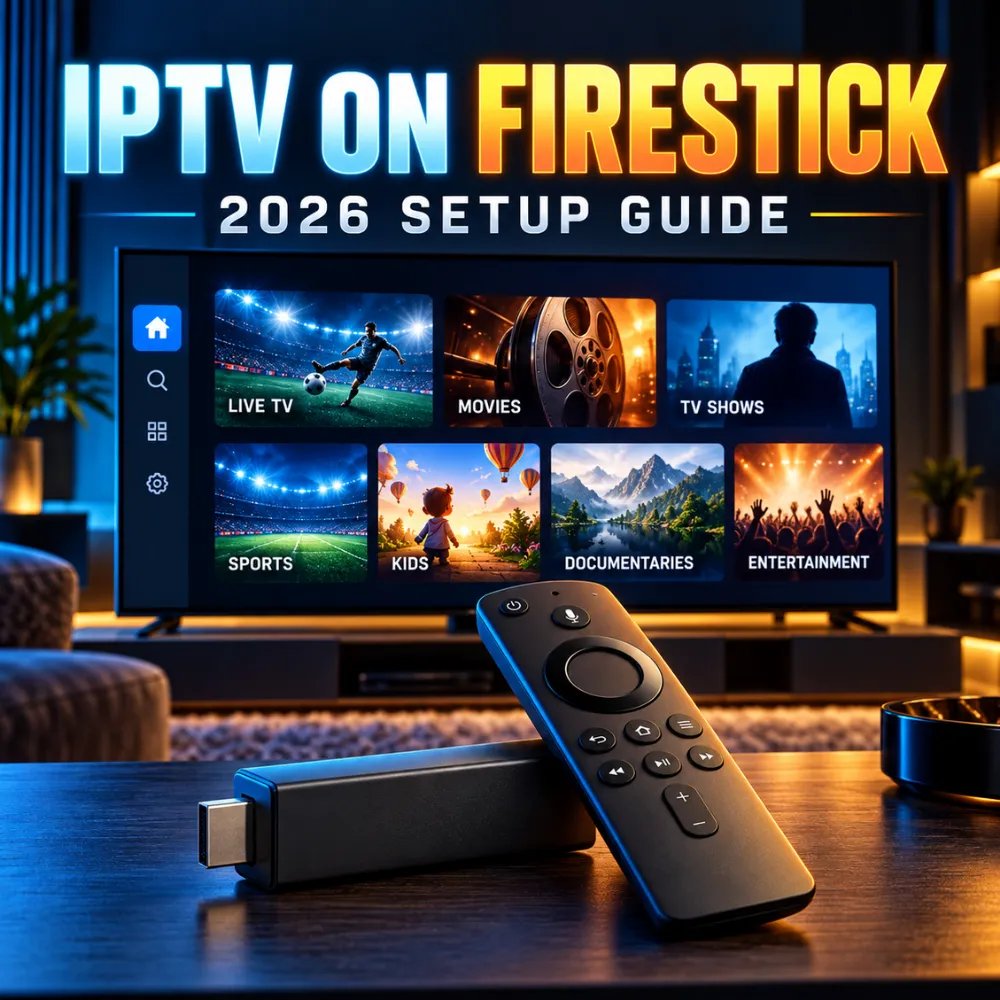
What Is IPTV on Firestick?
IPTV stands for Internet Protocol Television. It describes television programming delivered through internet networks rather than exclusively through conventional cable or satellite.
A Fire TV Stick is a compact streaming device that connects to your television’s HDMI port. It can run compatible applications for video and other entertainment.
To use an IPTV service on Firestick, you generally need a supported player application and access to an authorized television service.
Remember that an IPTV player and an IPTV subscription are not necessarily the same product. Installing a player does not automatically provide television channels or movies.
What You Need Before Installing IPTV on Firestick
Before starting your IPTV Firestick setup, make sure you have:
- A compatible Amazon Fire TV Stick
- A television with an HDMI port
- The Fire TV power adapter and USB cable
- A working internet connection
- Your Wi-Fi name and password
- An Amazon account for device setup
- A compatible streaming application
- Authorized subscription details, if required
How to Install IPTV on Firestick: Step-by-Step Instructions
Step 1: Connect Your Firestick to the Television
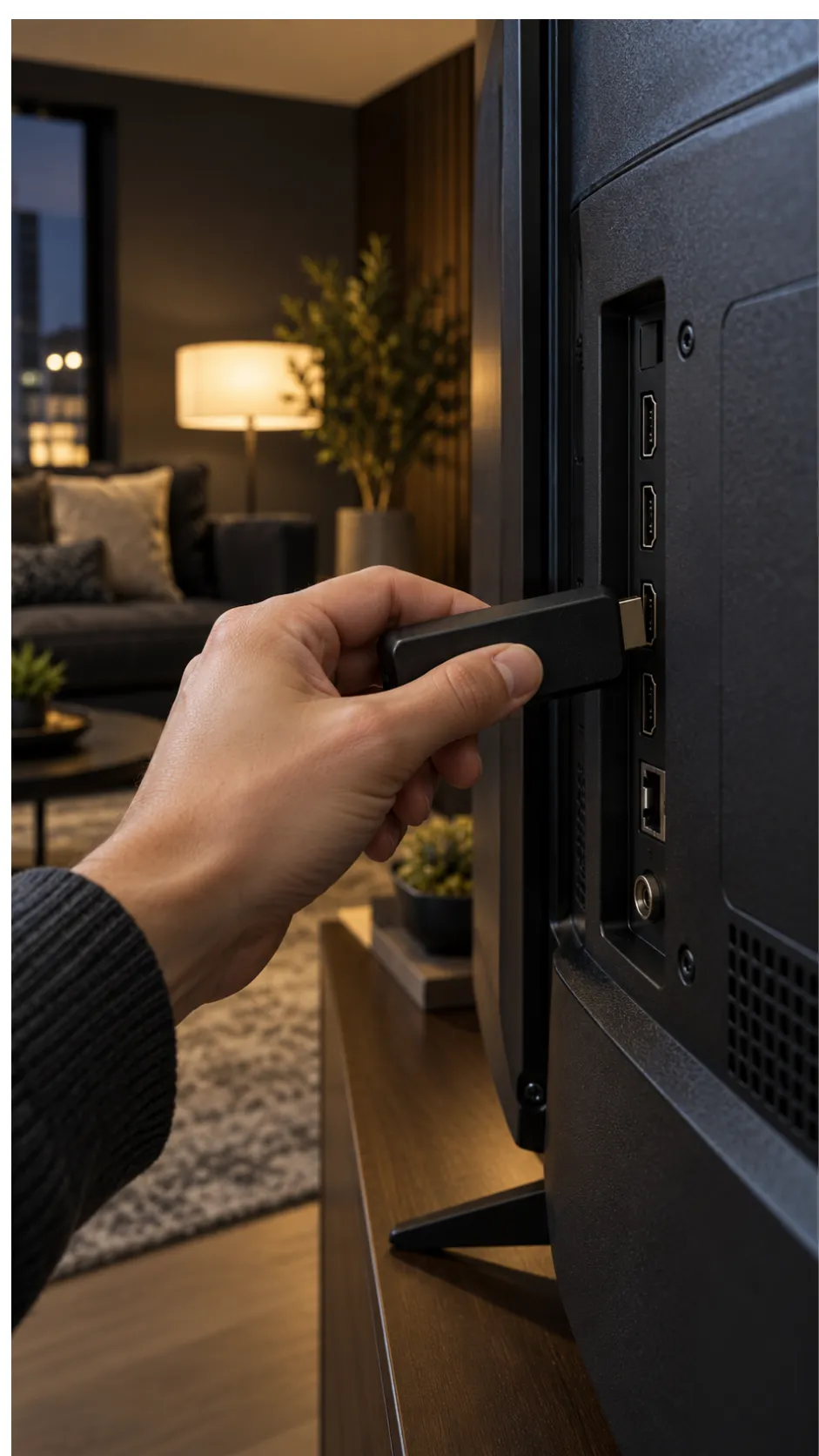
Begin by connecting your Fire TV Stick to an available HDMI port on your television.
- Insert the Fire TV Stick into an HDMI port.
- Connect its USB cable to the power adapter.
- Plug the power adapter into an electrical outlet.
- Insert batteries into your Fire TV remote.
- Turn on the TV and select the correct HDMI input.
- Wait for the Fire TV welcome screen.
Amazon recommends using the supplied power adapter. A television’s USB port may not provide sufficient power for every Fire TV Stick model.
Step 2: Connect Firestick to Your Wi-Fi
Once the Fire TV welcome screen appears, follow the instructions displayed on your television.
- Select your preferred language.
- Choose your Wi-Fi network.
- Enter the Wi-Fi password.
- Wait for the internet connection to complete.
- Sign in to your Amazon account.
- Complete the remaining setup prompts.
Some Fire TV models also allow account setup using a QR code or an activation code displayed on your television.
Step 3: Check for Fire TV Software Updates
Before installing your streaming application, make sure your Fire TV software is up to date.
On many Fire TV devices, you can open:
Menu names may differ slightly depending on the Fire TV model and software version.
Follow any update prompts and allow the device to finish restarting if required.
Step 4: Find a Compatible IPTV Player
Now you’re ready to find a compatible streaming application.
From the Fire TV home screen:
- Navigate to Find or the Search option.
- Open the Amazon Appstore search.
- Enter the name of your supported application.
- Check the developer and app description.
- Confirm compatibility with your device.
- Select the download or install option.
The best IPTV player for Firestick depends on your device, the features you need, and the format supported by your authorized provider.
Choose applications from trusted sources and avoid unknown installation files or suspicious download links.

Step 5: Open the IPTV Application
After installation finishes, open the application.
Depending on the app, you may see:
- A login screen
- An activation-code screen
- A playlist import option
- A provider connection screen
- Account or device registration instructions
The exact setup process depends on the application and your television provider.
Step 6: Enter Your IPTV Subscription Details
If your service requires separate authentication, use only the account information supplied by your authorized provider.
Depending on the supported application, this may involve:
- Account email or username
- Account password
- Provider server address
- A supported playlist address
- An activation code
Enter the information exactly as instructed. Then complete the application’s sign-in or activation process.
Step 7: Confirm Your Channels and Programs
After signing in, check the application’s available sections.
Depending on the service and its content rights, you may have access to:
- Live television channels
- Movies and series
- Video-on-demand content
- Search and favorites
- Electronic program guides (EPG)
Available content varies between subscriptions. Verify the channels and features included in your plan.
Step 8: Adjust Your Viewing Settings
Some player applications offer settings for video playback, subtitles, audio tracks, and streaming quality.
Use the settings supported by your application and avoid forcing a resolution that your TV or internet connection cannot handle.
Step 9: Test Your Streaming Experience
Before relying on the new setup for daily viewing:
- Open an authorized stream.
- Test video and audio playback.
- Check whether navigation responds normally.
- Try the program guide if included.
- Monitor playback for several minutes.
If the video freezes, stops, or buffers, review the troubleshooting section below.
How to Fix IPTV Buffering on Firestick
If your IPTV stream keeps buffering, the cause may be related to Wi-Fi strength, internet speed, the device, the application, or the streaming service.
Try the following Firestick IPTV buffering fixes.
1. Check the Network Connection
Open the network settings on your Fire TV device.
Compatible Fire TV devices provide network diagnostics that can help identify connection problems.
2. Restart Your Fire TV Stick
Restart the device using the Fire TV settings menu, or disconnect its power briefly and reconnect it.
3. Restart Your Router
If several devices have internet problems, restarting your modem and router may help.
4. Improve Wi-Fi Strength
When practical, move your router closer to the television or use a compatible wired Ethernet adapter.
5. Update Your Streaming Application
Check whether the installed player has an available update. Older application versions may have compatibility or performance problems.
6. Clear the App Cache
On many Fire TV devices, app cache settings are located under:
Choose the affected application and select Clear Cache if the option is available.
Be careful with Clear Data: it may remove saved app settings and require you to sign in again.
7. Contact Your Provider
If other apps work normally but one authorized IPTV service continues buffering, contact that service’s support team.
Include the device model, app name, approximate time of the problem, and any displayed error message.
How Much Internet Speed Do You Need for IPTV?
The bandwidth needed for internet television depends on the application, video format, and number of active streams.
| Video Quality | General Planning Speed |
|---|---|
| HD | About 5 Mbps |
| Full HD | About 5–10 Mbps |
| 4K UHD | About 15–25 Mbps or more |
These are general reference ranges, not guaranteed requirements for every IPTV subscription.
Multiple active devices, Wi-Fi interference, and network congestion may increase the bandwidth your household needs.
IPTV Player vs IPTV Subscription: What’s the Difference?
This distinction is important for beginners setting up IPTV on Firestick.
| IPTV Player | IPTV Subscription |
|---|---|
| Software used to play supported streams | Service access supplied by a provider |
| May require installation | May require an account or activation |
| Does not automatically provide channels | Offers a defined, authorized content catalog |
Before choosing an IPTV subscription for Firestick, confirm which player is supported and whether additional application fees apply.
Why Explore Unlimited IPTV?
Unlimited IPTV is a subscription brand you can explore while researching internet television options.
Visit the official website to ask about current plans, compatible players, supported Fire TV devices, programming availability, and customer assistance.
Confirm subscription terms and content distribution rights before purchasing.
Interested in Unlimited IPTV?
Get current subscription details and ask about Firestick compatibility, player setup, and available plans.
Explore IPTV Subscriptions Contact on WhatsAppFrequently Asked Questions About IPTV on Firestick
How do I install IPTV on Firestick?
Connect and configure your Fire TV Stick, find a compatible application through a trusted source, install it, and follow the authorized provider’s account setup instructions.
Do I need an IPTV subscription?
A player application does not automatically provide channels. You need authorized access to the content you want to watch.
What is the best IPTV player for Firestick?
The best player depends on device compatibility, supported formats, available features, and the service you use.
Can Firestick play 4K IPTV?
Compatible 4K-capable Fire TV devices can play supported 4K streams when the television, application, content, and internet connection meet the requirements.
Why is IPTV buffering on Firestick?
Possible causes include weak Wi-Fi, insufficient bandwidth, device performance issues, application problems, or service-side interruptions.
Is IPTV legal in the USA?
IPTV is a video delivery technology. Services need the appropriate rights to distribute copyrighted channels, movies, and sporting events.
How can I contact Unlimited IPTV?
Visit unillimitediptv.com or contact the team through WhatsApp for current information about subscription options.
Final Thoughts: Setting Up IPTV on Firestick in 2026
Learning how to set up IPTV on Firestick can be straightforward when you follow a clear step-by-step process.
Start by connecting your Fire TV Stick, configuring your internet connection, installing a supported player, and entering authorized subscription details.
Make sure the content is properly licensed, keep your applications updated, and use the troubleshooting steps when necessary.
If you want to explore Unlimited IPTV subscription options, visit the official website or contact the team.
Ready to Explore Unlimited IPTV?
Ask about current plans, Firestick compatibility, and setup assistance.
Visit Unlimited IPTV WhatsApp Order InquiryNote: Fire TV menus and supported applications may differ by device model and software version. Always confirm content rights and service compatibility before subscribing.