
How to Set Up IPTV on Samsung Smart TV in 2026: 7 Easy Steps for Beginners
Just bought a Samsung Smart TV? Or maybe you’ve had one for years and want to explore new streaming options. The setup is easier once you know where to look. Let’s go through it together, one step at a time.
Can You Watch IPTV on a Samsung Smart TV?
Yes. A compatible Samsung Smart TV can access internet-based television and video services through supported streaming applications.
The important part is knowing which applications your particular television supports.
Samsung Smart TVs use Samsung’s Tizen-based smart TV platform. This is different from Android TV, so the app installation process is not the same as on an Android phone or an Android TV box.
If you’re searching for how to install IPTV on Samsung Smart TV, this guide will help you check compatibility, find an appropriate player, install it, and connect an authorized streaming service.
What You’ll Need
Before starting, make sure you have a compatible Samsung Smart TV, a working internet connection, access to Samsung Smart Hub, a Samsung account if required, and a supported streaming application or player.
If your player requires a subscription, you’ll also need valid login details from a service authorized to provide the content.
Your Samsung IPTV Setup at a Glance
Connect TV to internet
Open Smart Hub
Find a compatible app
Install the app
Open the player
Enter service details
Test your streaming setup
Enjoy your TV
How to Set Up IPTV on Samsung Smart TV in 2026
Different Samsung models can have slightly different menus. If a button has a different name on your television, look for its closest equivalent.
Connect Your Samsung Smart TV to the Internet
First, make sure your TV has a reliable internet connection. Without it, you won’t be able to download or use most streaming apps.
- Turn on your Samsung Smart TV.
- Press the Home button on your remote.
- Open Settings.
- Find the Network or Connection menu.
- Select a Wi-Fi network or wired connection.
- Follow the on-screen instructions.
If possible, test another legitimate streaming app to confirm the connection works.
Open Samsung Smart Hub
Samsung Smart Hub is where you access supported apps and many of your TV’s entertainment features.
- Press Home on your remote.
- Navigate to the Apps area or your TV’s app search.
- Sign in to your Samsung account if prompted.
If you’re using a new TV, you may first need to complete the initial Smart Hub setup.
Find a Compatible IPTV App for Samsung Smart TV
This is where many beginners get confused.
Not every IPTV player advertised online works on Samsung TVs. Some applications are designed specifically for Android TV or Fire TV devices.
Search the Samsung app store for a streaming player that supports your model.
Before choosing an app, check:
- Compatibility with your Samsung TV model.
- Availability in your country or region.
- Supported account or playlist formats.
- Ease of navigation with a TV remote.
- Developer information and support options.
Your Samsung App Store Is the Starting Point
Think of the app store as your first compatibility check.
If a particular IPTV app does not appear in search, it may be unavailable for your model, operating system version, or region.
Don’t assume a tutorial written for another television will work on yours.
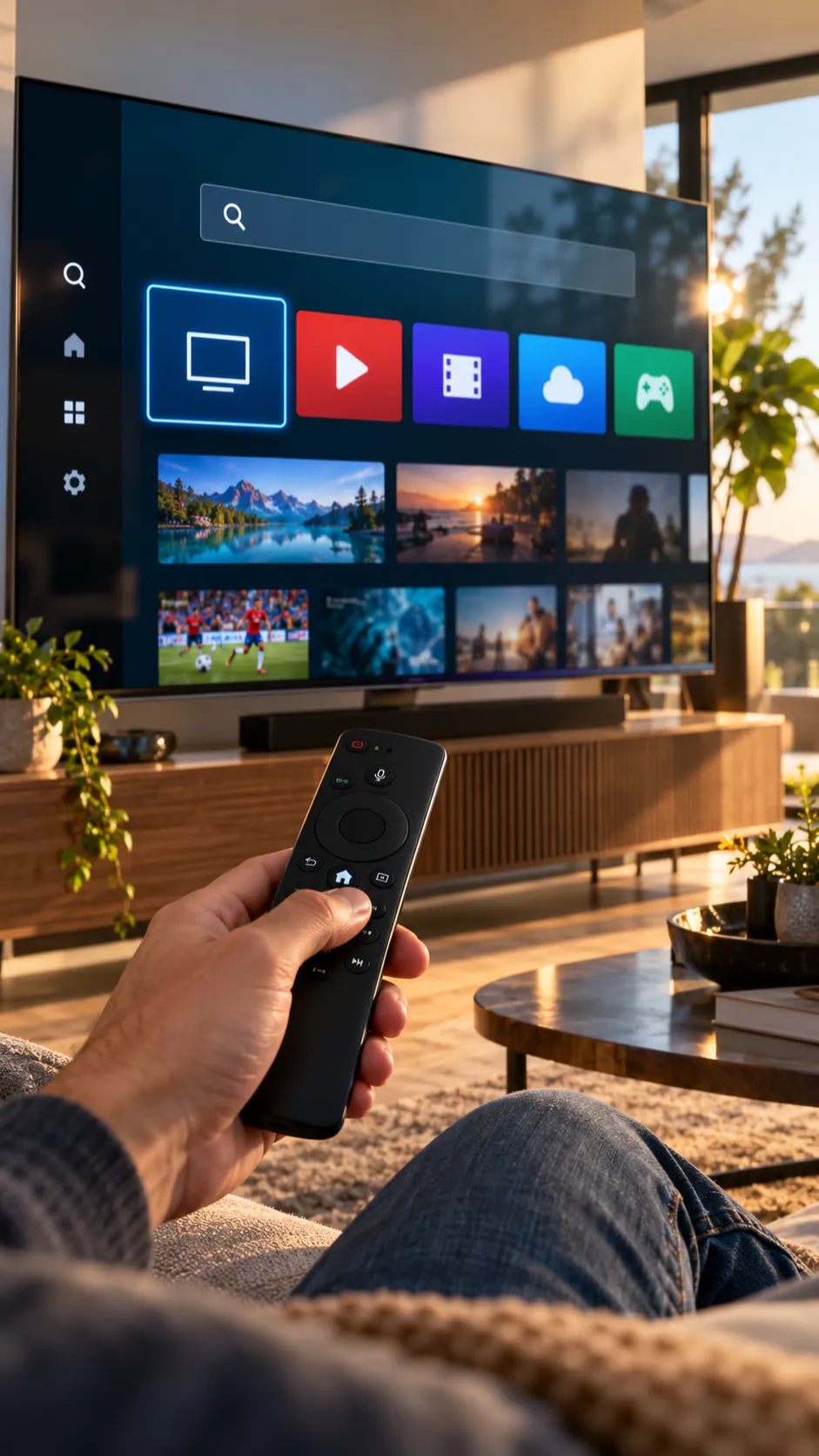
Install the Streaming Application
Once you find a compatible app, installing it is usually simple.
- Select the application in the store.
- Review its description and requirements.
- Select Install.
- Wait for the installation to finish.
- Select Open to launch it.
Some apps are free to install, while others may require a separate payment or activation. Always check the app’s own terms.
Open Your IPTV Player and Review Its Setup Screen
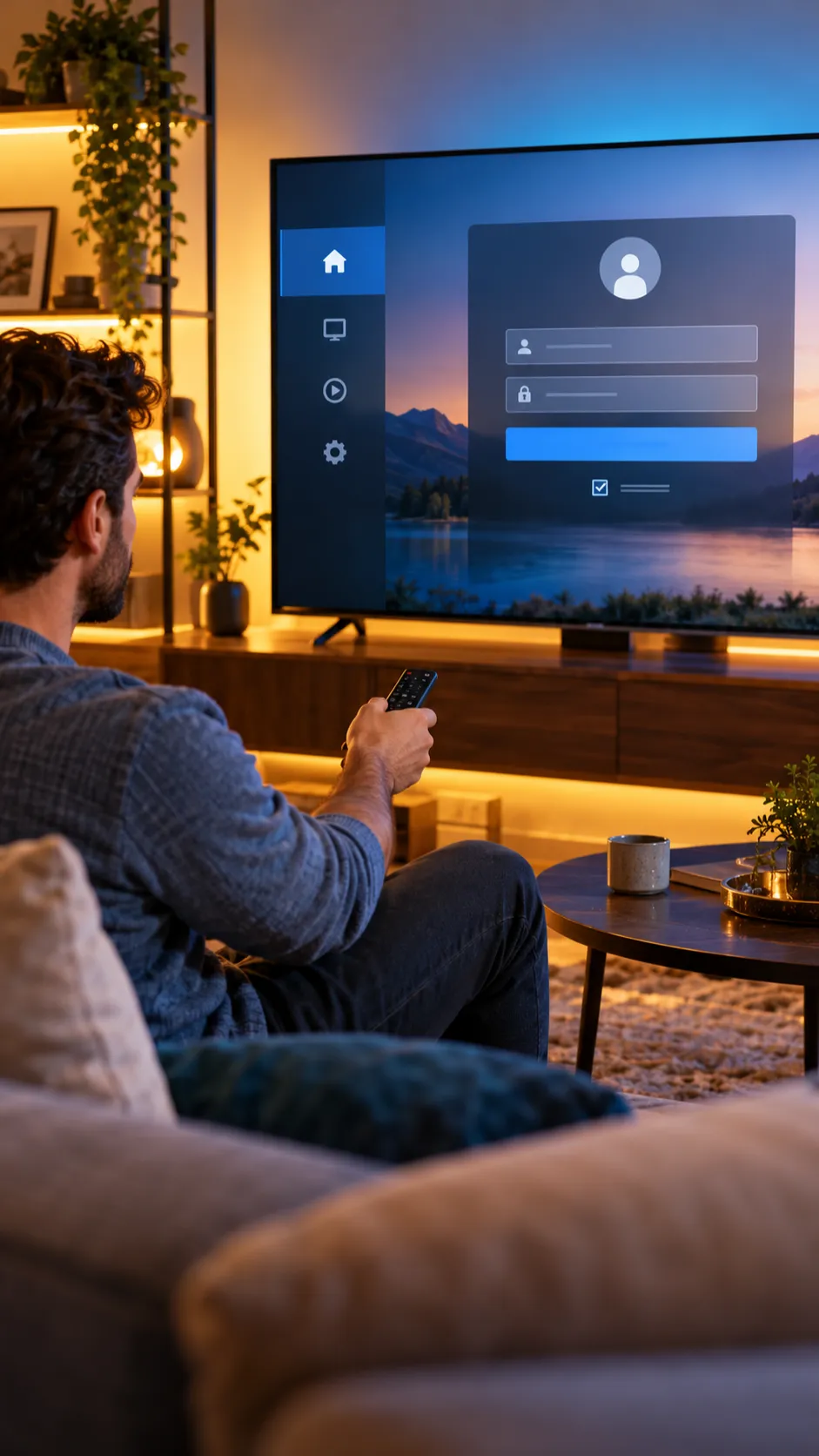
After opening the application, you may see a welcome screen, account sign-in page, or activation instructions.
Every player works a little differently, so follow the instructions provided by the app developer.
Some players display an activation code or device identifier. Others ask for login credentials immediately.
Do not share passwords, account information, or private playlist URLs publicly.
Connect Your Authorized IPTV Subscription
This step depends on the IPTV player and service you’re using.
Your chosen application may support one or more of the following:
- Username and password login.
- Provider-issued portal details.
- A compatible playlist URL.
- Another activation method supported by the app.
Enter only the information supplied by an authorized streaming service.
If your service’s credentials are not compatible with your selected player, ask the provider which Samsung applications it supports.
Follow Your Player’s Activation Instructions
Your app might look different from a screenshot you saw online.
That’s normal. Different players have different sign-in screens, supported formats, and activation procedures.
Use the app developer’s instructions and your provider’s legitimate account details.
Test Playback and Adjust Your Settings
Once the player is configured, open content that your service is authorized to provide.
Let it play for several minutes.
Check that:
- The video starts correctly.
- Picture and sound stay synchronized.
- Playback does not repeatedly freeze.
- The remote control works as expected.
- The player responds when navigating menus.
If the player offers playback-quality settings, use the options appropriate for your internet connection and television.
At this point, your Samsung Smart TV IPTV setup should be ready for everyday use, assuming the app, account, and service are compatible.
What’s the Difference Between an IPTV Player and an IPTV Subscription?
This is worth understanding before spending money.
IPTV Player
An application that provides a way to access and play compatible streaming content.
It may offer a channel guide, playback controls, favorites, and other features.
Installing a player does not necessarily provide any television content.
IPTV Subscription
A service that provides access to content under its own terms and permissions.
It may require a subscription and provide login or activation details.
The service must have the rights needed to distribute its content.
If you’re searching for the best IPTV player for Samsung TV, remember to compare compatibility and functionality, not just appearance.
How Fast Should Your Internet Be for Samsung TV IPTV?
The connection needed for IPTV depends mainly on the video quality and how many devices are active at the same time.
For general planning, approximately 5–10 Mbps can support many individual HD streams, while 4K may require 15–25 Mbps or more depending on the service.
These are broad estimates, not guaranteed requirements.
A stable connection often matters more than an impressive speed number that constantly fluctuates.
Tips for More Consistent Playback
- Keep your router in an open location.
- Use a stable Wi-Fi connection.
- Consider Ethernet where supported.
- Update your TV software.
- Use supported streaming applications.
- Avoid unnecessary network congestion.
Samsung Smart TV IPTV Not Working? Try These Fixes.
Occasionally, an app won’t open, a stream freezes, or a login screen refuses to accept your details.
Here are a few common issues and sensible starting points.
The App Is Missing
Search the Samsung app store again. If you cannot find the app, check its compatibility with your TV model, software version, and region.
The App Won’t Open
Restart the television, check for software updates, and reinstall the app if Samsung’s troubleshooting guidance recommends it.
Login Details Don’t Work
Double-check the information you entered. Make sure your subscription is active and supported by that particular application.
IPTV Keeps Buffering
Check Wi-Fi signal strength, test another streaming app, restart your router, and contact the authorized service if only its content is affected.
The App Freezes
Close and reopen the app. Install available updates. If needed, follow Samsung’s official troubleshooting instructions for apps.
The TV Is Too Old
Some older televisions cannot install newer apps. A compatible external streaming device may be another option.
What If Your Samsung Smart TV Doesn’t Support the IPTV App?
Don’t panic. An older Samsung television isn’t automatically useless for modern streaming.
If a particular application is unavailable in Smart Hub, you may be able to use a compatible external device connected through HDMI.
Depending on the services and applications you use, potential options include:
- Amazon Fire TV devices.
- Supported Android TV devices.
- Google TV streaming devices.
- Other supported media players.
Check the compatibility of your streaming service before purchasing another device.
In many cases, you can continue using the same television as a display while the external device handles the streaming apps.
Make Your Smart TV Work for You
The best home setup is the one that feels simple when you actually want to watch something.
You shouldn’t have to spend your evening navigating confusing menus.
Once your TV, player, and authorized service work together, you can focus on enjoying your screen.
Questions About Samsung TV Streaming Setup?
Need help understanding streaming-device compatibility, player setup, or subscription options? Explore Unlimited IPTV or reach out on WhatsApp.
IPTV on Samsung Smart TV FAQ
1. Can I install IPTV directly on Samsung Smart TV?
You can install supported streaming applications directly from the Samsung app store, provided they are compatible with your TV model and available in your region.
2. Does Samsung Smart TV support Android APK files?
Samsung Smart TVs use a Tizen-based operating system rather than Android TV. Normal app installation takes place through Samsung’s supported app store, not by installing Android APKs.
3. What is the best IPTV player for Samsung Smart TV?
The best choice depends on your Samsung model, available applications, supported account formats, and personal preferences. Check the app store and the player’s official compatibility information.
4. Why can’t I find an IPTV app on Samsung TV?
An app may be unavailable because of regional restrictions, software compatibility, the TV’s age, or because the developer does not offer a Samsung TV version.
5. Do I need an IPTV subscription for Samsung Smart TV?
Some streaming applications offer free content, while others require separate subscriptions. If you use a player that does not include content, you may need an authorized service account.
6. Can I watch 4K IPTV on Samsung Smart TV?
A compatible 4K Samsung TV may support 4K streaming when the application, video format, service, and internet connection all support it. A 4K television alone does not guarantee 4K playback from every source.
7. How do I update apps on my Samsung Smart TV?
Samsung provides app-management and update options through its smart TV interface. Exact controls vary by model and software version. Keep the television connected to the internet and use supported update features.
8. Can I use a Firestick with a Samsung Smart TV?
Yes, compatible Fire TV streaming devices can connect to a Samsung television through HDMI. This can be useful when a particular app is unavailable on the TV’s built-in platform.
Ready to Start Streaming on Your Samsung Smart TV?
Setting up IPTV on Samsung Smart TV doesn’t have to be complicated.
The most important part is finding an application that genuinely works with your specific television.
Start by connecting your TV, opening Smart Hub, and checking the available apps. Then follow the instructions from your selected player and authorized streaming provider.
If something doesn’t work, take your time. Verify compatibility first, then check the network, software, and login details.
Once everything is configured, you can settle into your favorite seat and enjoy your home entertainment.